# How to run Claude Code on a remote server and keep it running
To keep Claude Code running on a remote server after you disconnect, start it inside something on the server that outlives your SSH connection. By hand that's tmux. LlamaTree does the same job with a session host on the server, and shows the server's sessions beside your local ones. Both work for Codex and other command-line agents too.
## Why run an agent on a server?
- **It keeps working when your laptop sleeps** or you close the lid and go home.
- **The server has what the task needs:** more cores, a GPU, the database, the network the service lives on.
- **Long tasks** (a big refactor, a test suite that takes an hour) don't tie up the machine you're working on.
The agent has to be installed and signed in on the server, since that's where it runs.
## By hand: SSH and tmux
Connect, start a tmux session, and start the agent inside it:
```sh
ssh user@server
tmux new -s api
cd ~/src/shop && claude
```
Press Ctrl+B then D to detach. The agent carries on, and you can close the connection. To come back:
```sh
ssh user@server
tmux attach -t api
```
That's all it takes for one agent. What it leaves you to do yourself:
- **One pane at a time.** You see the agent you're attached to; one that's waiting in another tmux session says nothing.
- **Reviewing changes** means `git diff` in another pane, on the server.
- **Screenshots and files** on your computer have to be copied to the server before the agent can read them.
- **Every server is its own SSH window,** separate from the agents on your own machine.
## With LlamaTree: server sessions beside your local ones
[LlamaTree](https://llamatree.dev/) is a free, open-source desktop app for Windows and Linux that runs your agents side by side in one window. A session can run on this computer or on a server, and the two kinds sit together in your projects.
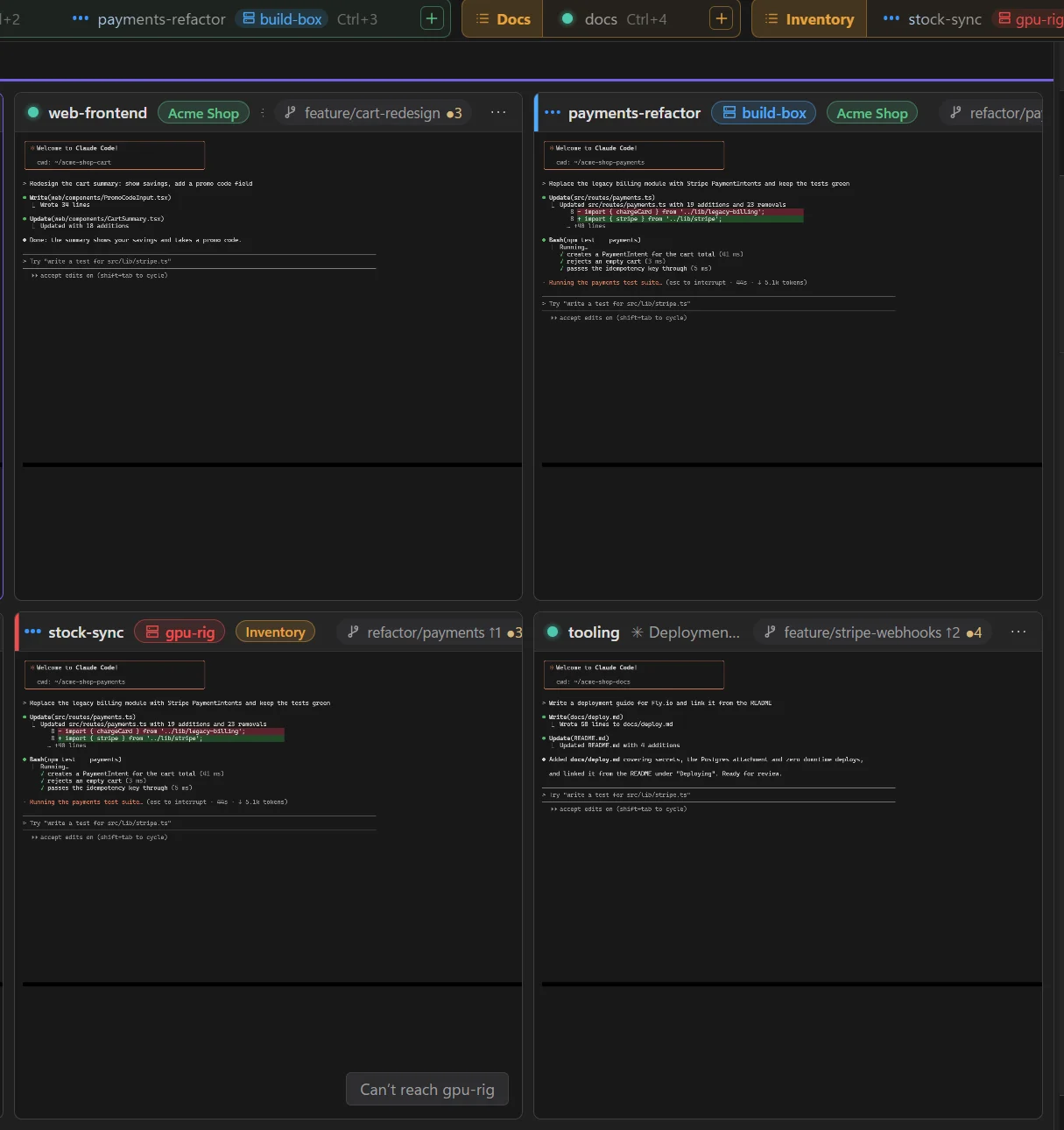
What you need:
- **`ssh` on your computer** (built into Windows 10 and 11, and Linux), signing in to the server **with a key or ssh-agent**. LlamaTree can't type a password.
- **A Linux server** (x86-64) you can reach over SSH, or another Windows PC.
- **The agent on the server,** installed and signed in.
- **LlamaTree on the server.** It doesn't need a desktop there. If it's missing, LlamaTree offers to install it for you over SSH.
Then:
1. Press Ctrl+Shift+N for **New Session**.
2. Set *Computer* to the server: `user@server`, `ssh://user@server:port`, or a `Host` from your SSH config.
3. Pick a folder on the server (*Browse…* shows the server's folders) and start the session.
The session appears among your local ones, with the server's name on its tile. From there it works like a local session:
- **The same status dots,** so you see when the agent on the server needs your answer.
- **Git Changes and diffs** for the server's repository, in the same panel.
- **Paste a screenshot** into the prompt and it's copied to the server first.
- **Click a file path** to open a copy of the file on your computer.
## It keeps running
The sessions belong to a LlamaTree session host on the server, not to your window. Close LlamaTree, put your laptop to sleep or lose Wi-Fi, and they carry on. Meanwhile the tile says it can't reach the server and keeps trying, and when the connection comes back the session is as the agent left it.
One thing to check: if the server ends your processes when you log out (systemd's `KillUserProcesses`), run `loginctl enable-linger` there once.
Nothing has to be opened in a firewall beyond SSH itself: LlamaTree uses your own `ssh`, with your SSH config, keys and jump hosts.
## Related
- [Sessions on a server](https://llamatree.dev/docs/servers.html): setting up SSH keys, cloud VMs, a Windows PC as the server, and how it works.
- [How to tell when Claude Code is waiting for you](https://llamatree.dev/guides/know-when-claude-code-is-waiting.html)
- [How to run several Claude Code sessions in parallel](https://llamatree.dev/guides/run-multiple-claude-code-sessions.html)